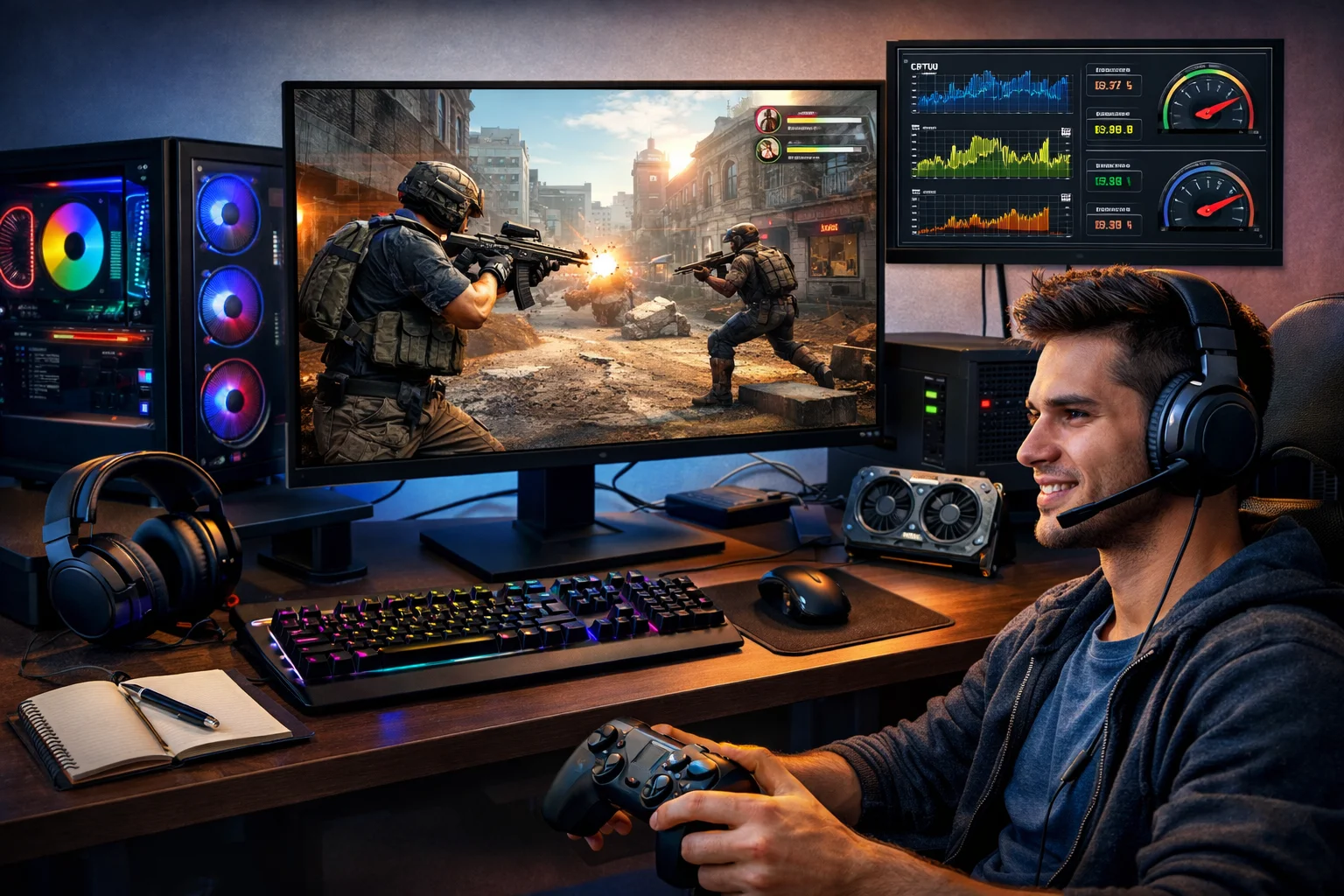
If your games stutter, load slowly, or don’t look as smooth as you expected, you’re not alone. Many players feel confused about whether the problem is their hardware, their settings, or something else entirely. The good news is that you can often get a big performance boost without buying a new PC. This guide will walk you through clear, practical ways to optimize your PC for gaming, step by step.
Why Does My PC Struggle With Games?
Before fixing anything, it helps to understand what usually causes performance problems.
Common Signs of Poor Gaming Performance
Low frame rates, sudden freezes, long loading times, and overheating are all signs that something isn’t working efficiently.
What Affects Gaming Performance the Most
Your graphics card, processor, memory, storage speed, and system settings all play a role. Even background apps can slow things down more than you expect.
How Can I Optimize Windows for Gaming?
Your operating system settings can make a real difference.
Enable Game Mode and Performance Settings
Turn on Game Mode in Windows. It helps prioritize your game over background tasks and updates.
Reduce Background Apps and Startup Programs
Close browsers, launchers, and apps you don’t need. Disable unnecessary startup programs so they don’t run every time you boot.
Keep Windows Updated
System updates often include performance and stability improvements. Staying updated helps games run more smoothly.
How Do I Optimize My Graphics Settings?
Graphics settings have the biggest impact on how your games look and run.
Adjust In-Game Graphics Options
Lowering shadows, reflections, and motion blur can boost performance without ruining visual quality. Start with “Medium” settings and adjust from there.
Use the Right Screen Resolution
Running a game at a higher resolution than your screen supports wastes power. Match the game resolution to your monitor for best results.
Update Your Graphics Drivers
Driver updates often fix bugs and improve performance for new games. Keeping them current is one of the easiest wins.
How Can I Improve Hardware Performance Without Upgrading?
Even older PCs can run better with a few smart tweaks.
Clean Your PC and Improve Airflow
Dust blocks airflow and causes overheating. Cleaning your PC can lower temperatures and prevent performance drops during long sessions.
Check Temperatures and Cooling
If your CPU or GPU gets too hot, it will slow itself down. Make sure fans are working and airflow is clear.
Use an SSD If Possible
Games load faster and run more smoothly on solid-state drives. If you’re still using a hard drive, moving games to an SSD can make a noticeable difference.
Should I Overclock My PC for Gaming?
Overclocking can help, but it’s not for everyone.
What Overclocking Actually Does
Overclocking pushes your CPU or GPU to run faster than factory settings. This can increase performance, but also heat and power usage.
When Overclocking Makes Sense
If you understand the risks and have good cooling, it can be useful. If you’re unsure, it’s safer to stick with default settings.
How Do I Optimize In-Game and System Settings Together?
The best results come from balancing both.
Match Settings to Your Hardware
There’s no “perfect” setting for everyone. A mid-range PC needs different settings than a high-end rig.
Test Changes One at a Time
Change one setting, test the game, then move on. This helps you see what actually makes a difference.
Use Built-In Benchmarks
Many games have performance tests. Use them to find the best balance between quality and smooth gameplay.
How Can I Reduce Lag and Stuttering?
Lag and stutter can ruin the experience, even on a powerful PC.
Check Your Internet Connection
Online games depend on a stable internet. Use a wired connection if possible and close downloads while gaming.
Disable Overlays and Recording Tools
Overlays from chat apps, recording software, or launchers can use resources. Turn off what you don’t need.
Monitor System Usage
If something is using too much CPU, memory, or disk in the background, it can cause stutters. Keep an eye on it.
Is My Monitor Affecting Performance?
Your screen plays a bigger role than many people realize.
Refresh Rate and Response Time
A 144Hz or 165Hz monitor can make games feel smoother, but only if your PC can produce enough frames.
Enable Adaptive Sync if Available
Technologies like FreeSync or G-Sync reduce screen tearing and make gameplay smoother.
Small Tweaks That Add Up
Little changes can combine into noticeable improvements.
Keep Storage Space Free
Full drives can slow down performance. Leave some free space on your main drive.
Restart Your PC Regularly
This clears memory and stops hidden background processes from building up.
Use a Balanced Power Plan
Set your system to high performance or balanced mode so it doesn’t limit your hardware during games.
FAQ
Do I need a gaming PC to optimize performance?
No. Even regular PCs can run games better with proper settings, cleanup, and updates.
Will optimizing settings damage my PC?
No. These steps are safe. Just avoid extreme overclocking if you’re not experienced.
How often should I update drivers?
Check every few months or when a new game you play releases.
Conclusion
Optimizing your PC for gaming is not about complicated tricks or expensive upgrades. It’s about understanding how your system works and making small, smart changes. By adjusting settings, keeping your system clean, and balancing performance with visual quality, you can enjoy smoother gameplay and fewer frustrations.
Take it step by step. Test what works for your setup. With a little time and attention, your PC can deliver a much better gaming experience.